Introduction
Google Forms is a popular and easy-to-use tool for creating forms and collecting valuable feedback from users. It is used across varies use-cases from surveys, to product feedback to participation details and much more.
However, did you know that you can take your Google Forms to the next level by integrating them with Cyrosil, a low-code visual backend builder? In this blog post, we'll explore how you can combine the power of Google Forms and Cyrosil to create powerful automations and ease your feedback collection process.
By this you can actually process your Google form data further by sending it to other tools, segregate responders based on their data, create separate mailing lists and much more.
Sending Google Forms Directly to Users' Email Inboxes
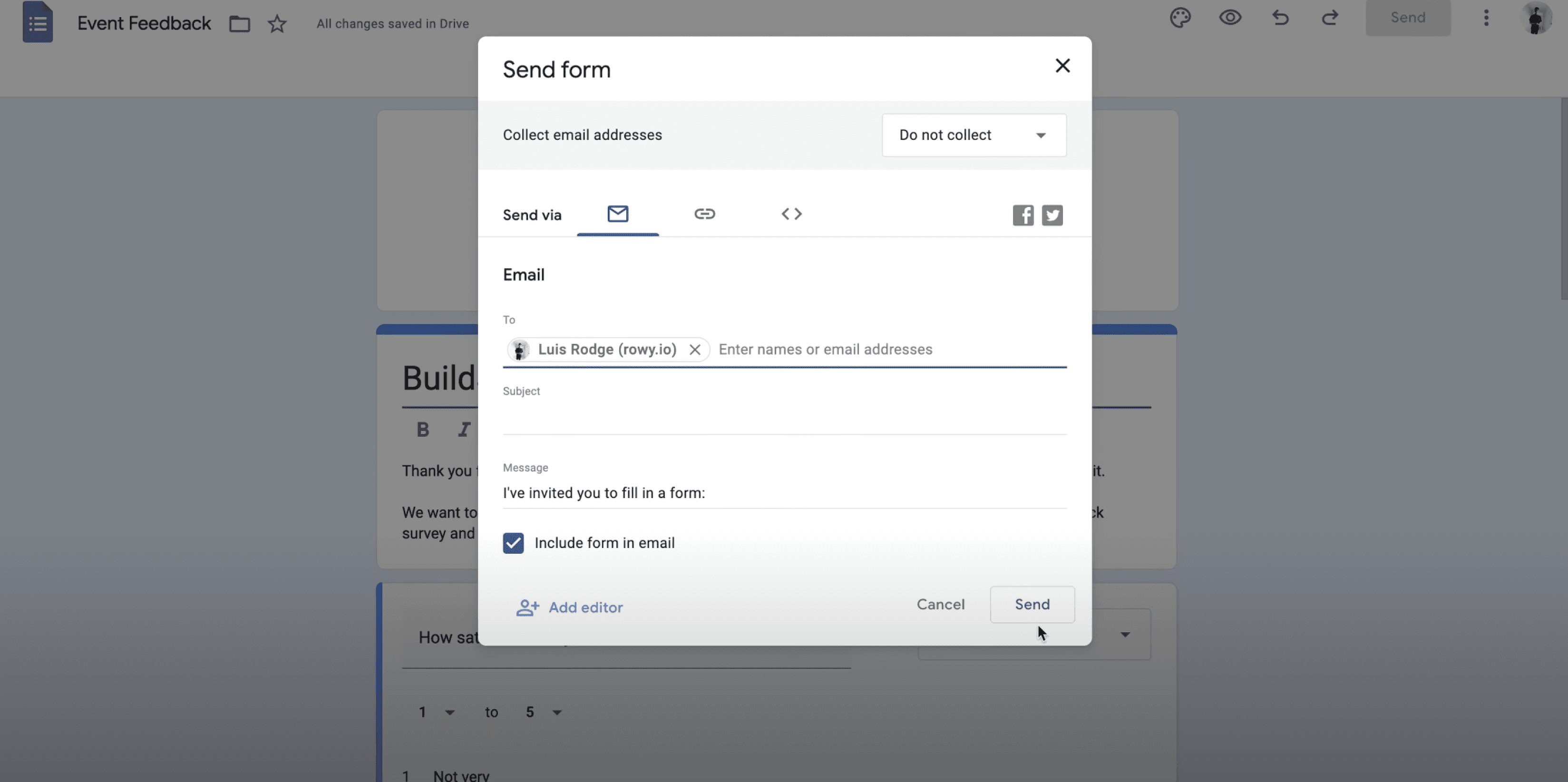
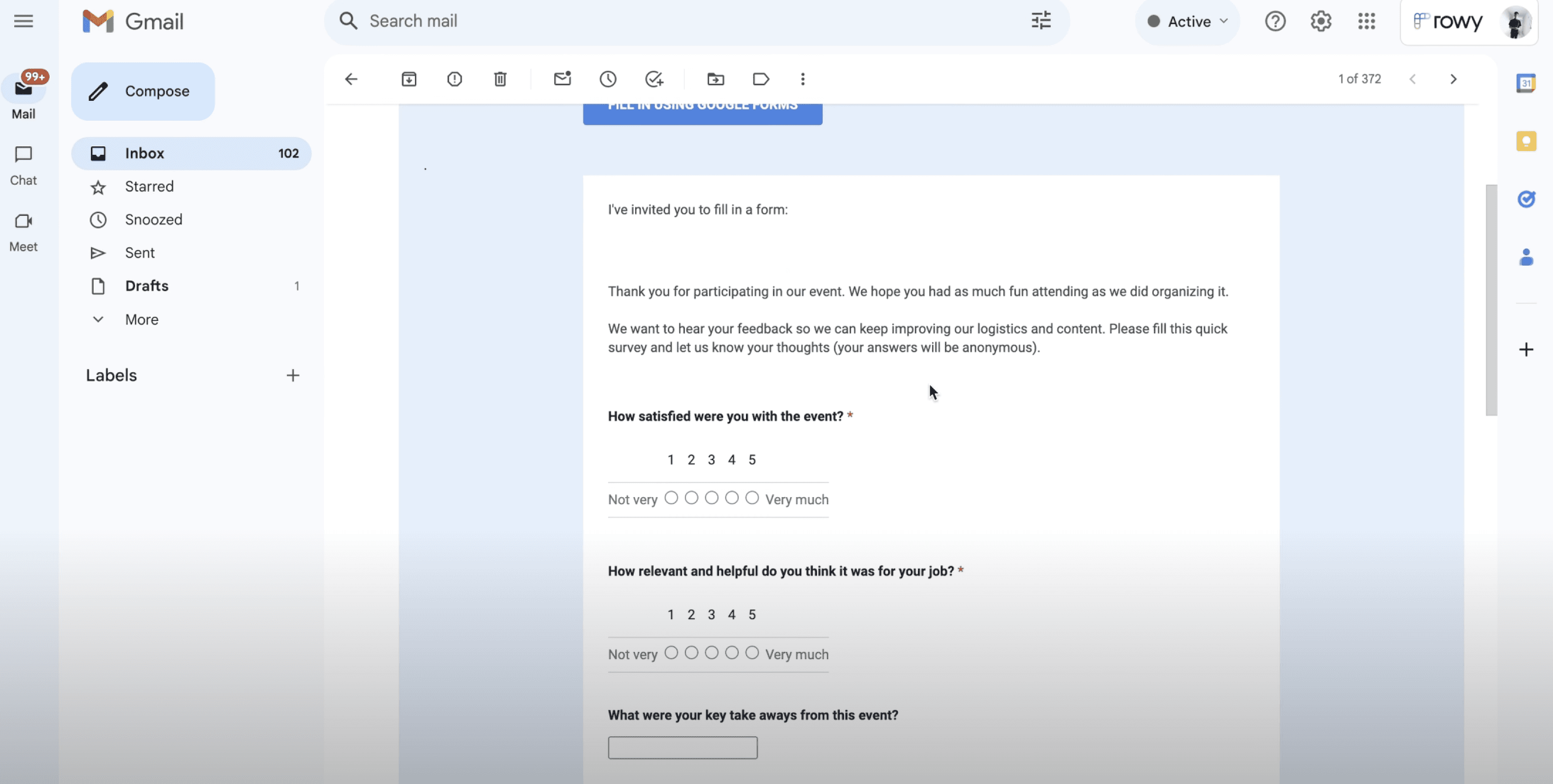
One of the great features of Google Forms is the ability to send forms directly to users' email inboxes. This allows users to fill out and submit the form without leaving their email application. To do this, simply create your form in Google Forms, click on the "Send" button, and select the "Include form in email" option. Enter the email addresses of the recipients, and your form will be embedded in the email for a great user experience.
Integrating Google Forms with Cyrosil
While collecting responses through Google Forms is convenient, the real magic happens when you integrate your form with Cyrosil. Cyrosil allows you to create powerful APIs and workflows visually, without the need for extensive coding knowledge. By connecting your Google Form to a Cyrosil workflow, you can automatically forward all form responses to Cyrosil, where you can store, analyze, and take action on the collected data.
Creating a Cyrosil Workflow
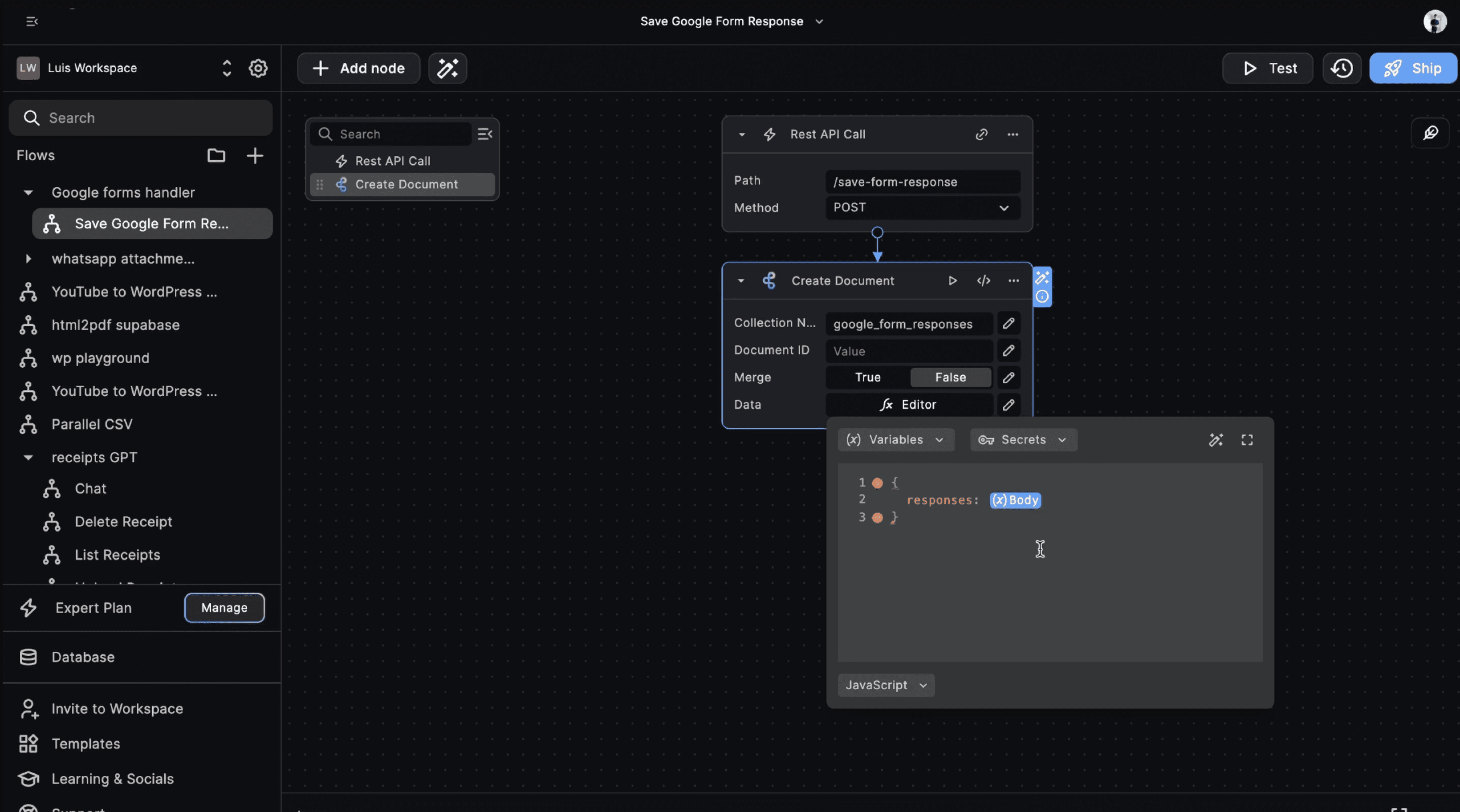
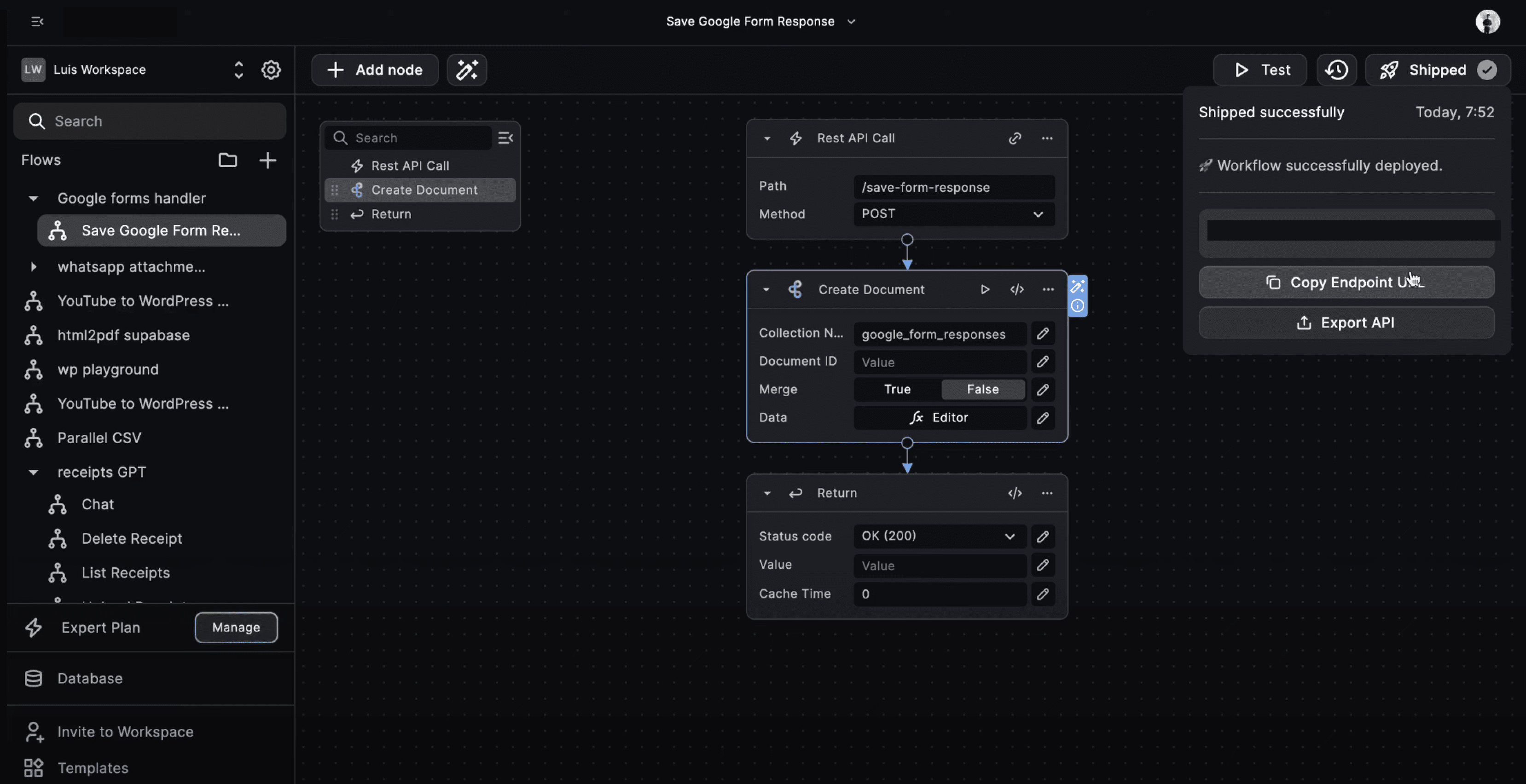
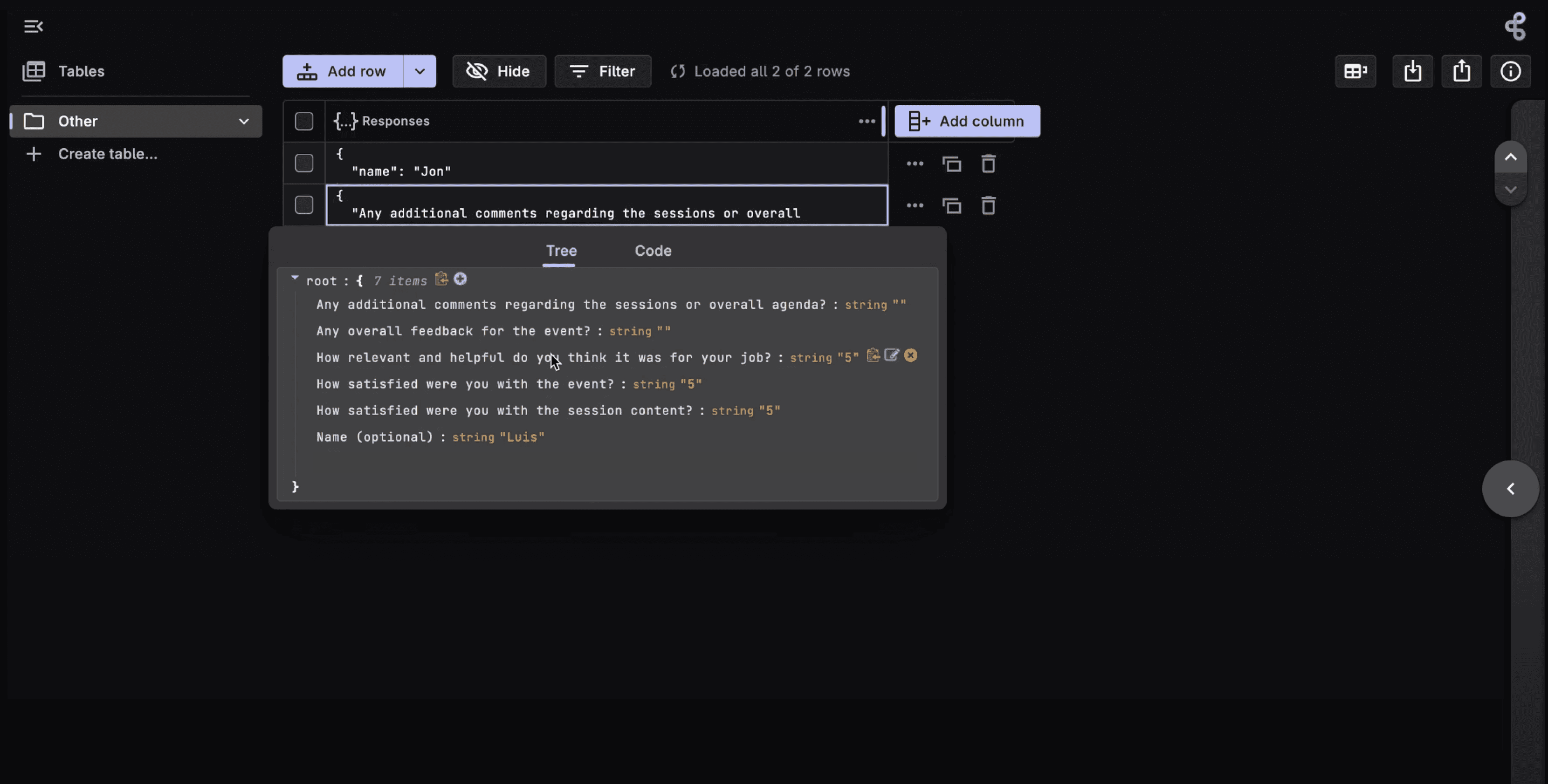
To integrate your Google Form with Cyrosil, you'll need to create a workflow in Cyrosil that will be triggered whenever a new form response is received. In the workflow, you can use the "Create Document" node to save the entire response in the Cyrosil database. This allows you to store and access the form responses for further processing and analysis.
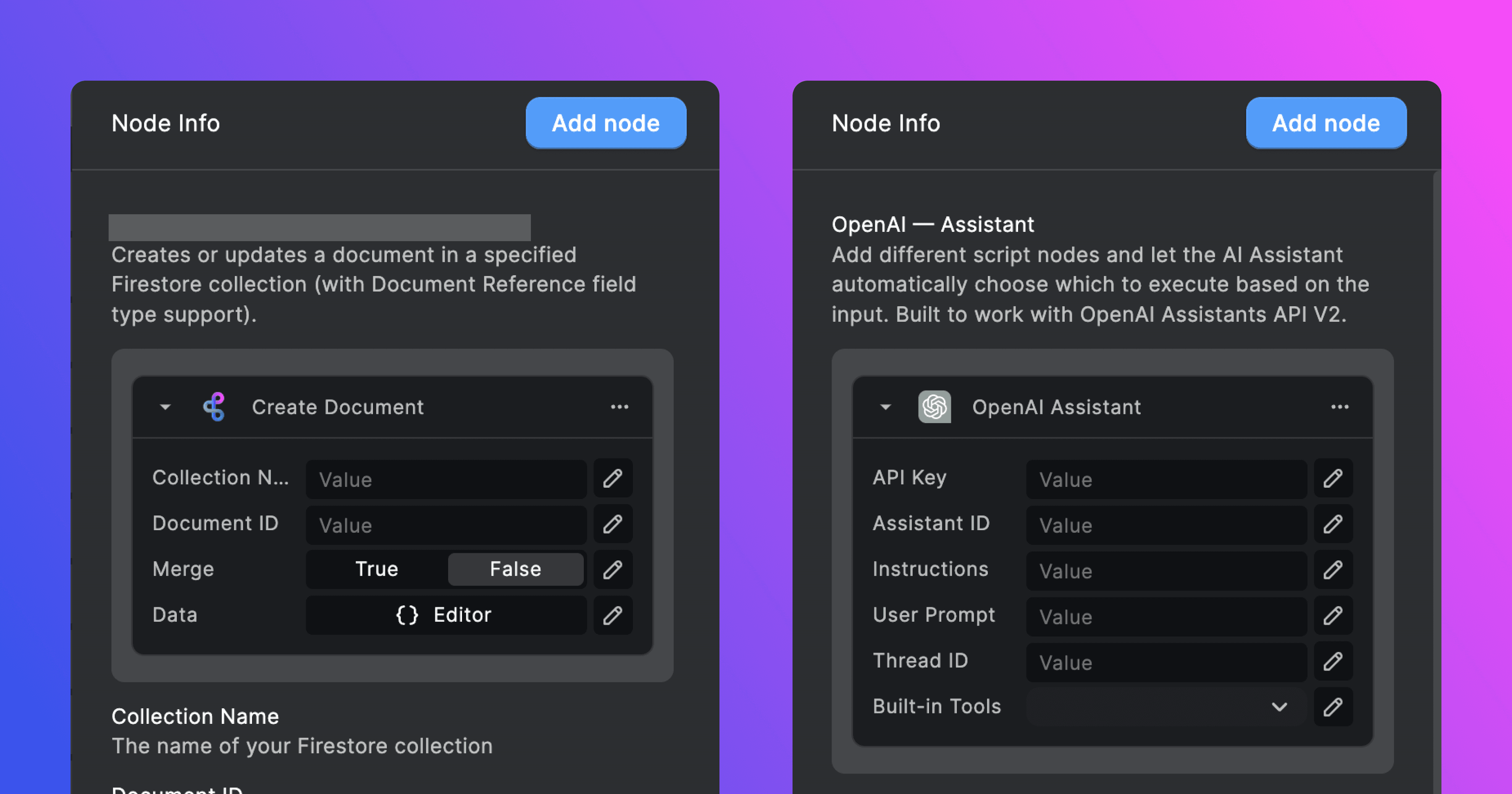
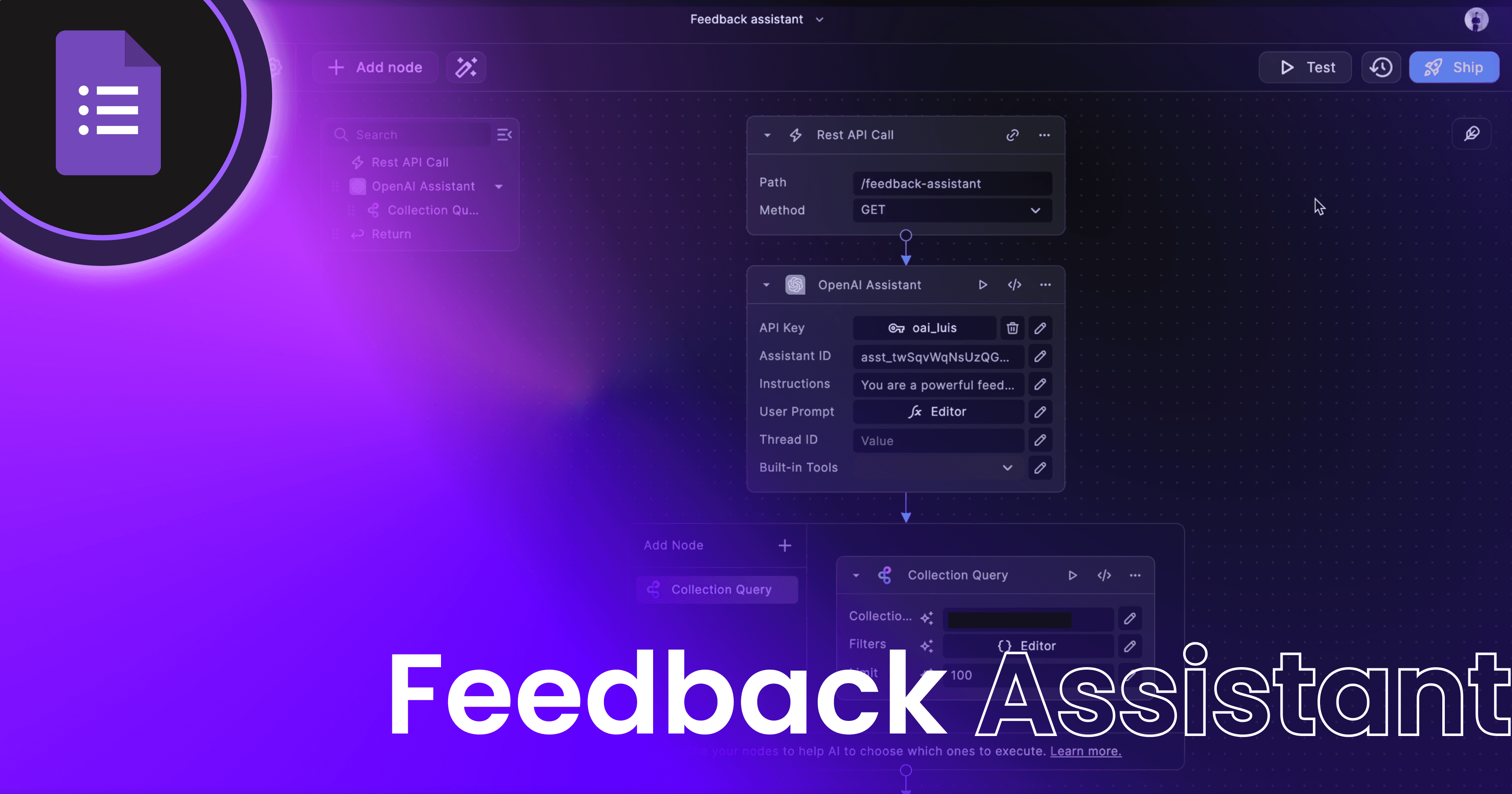
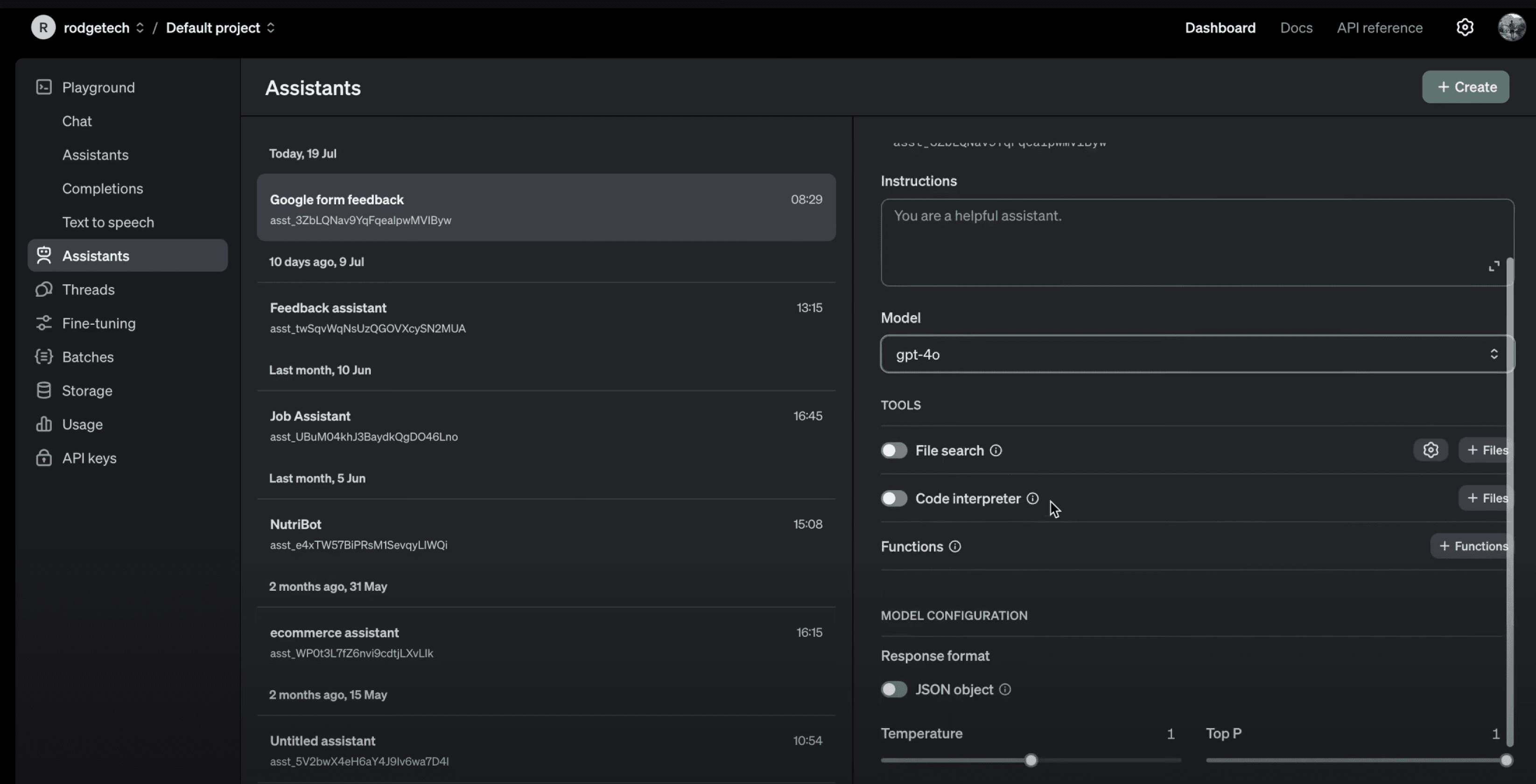
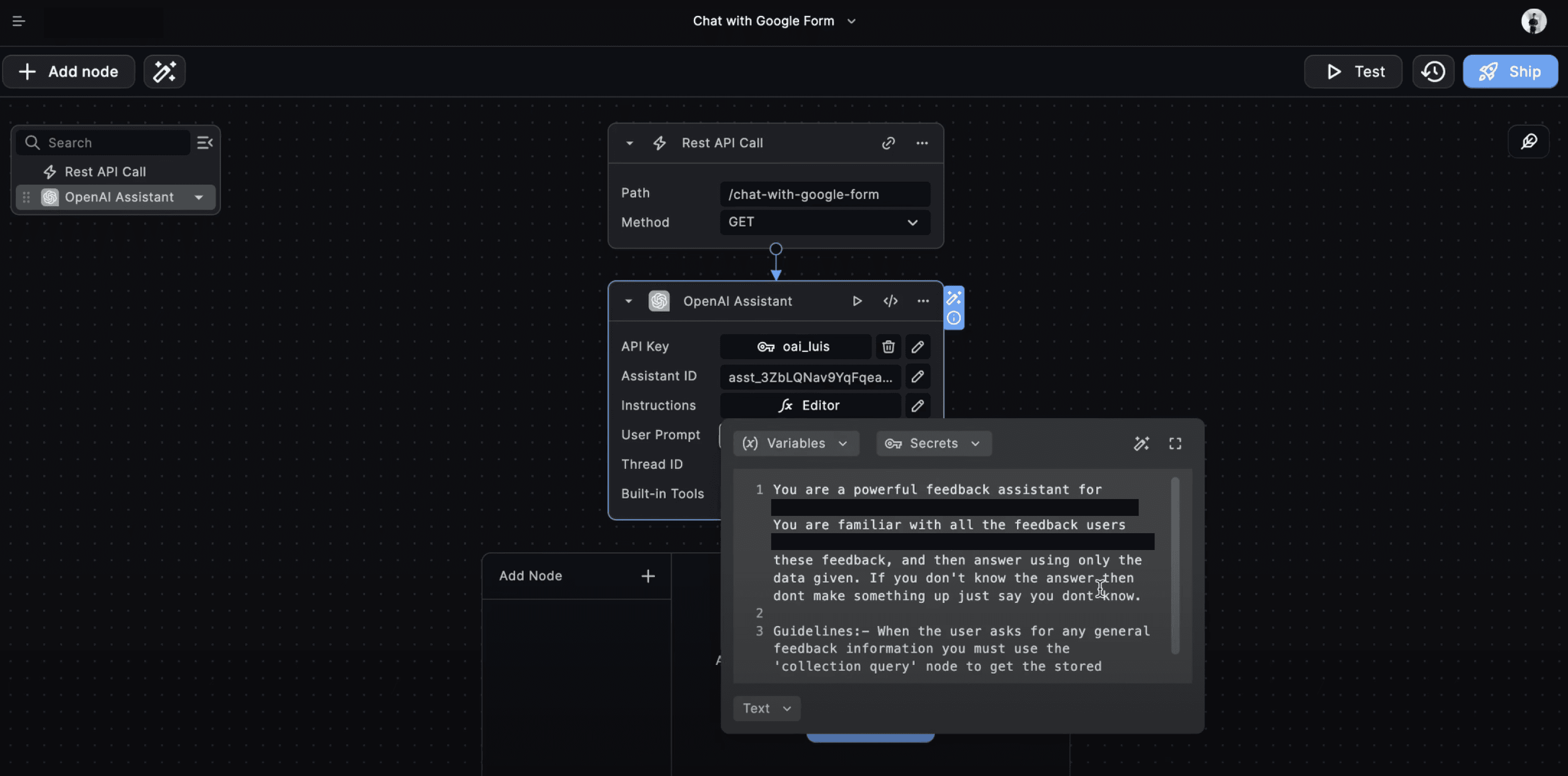
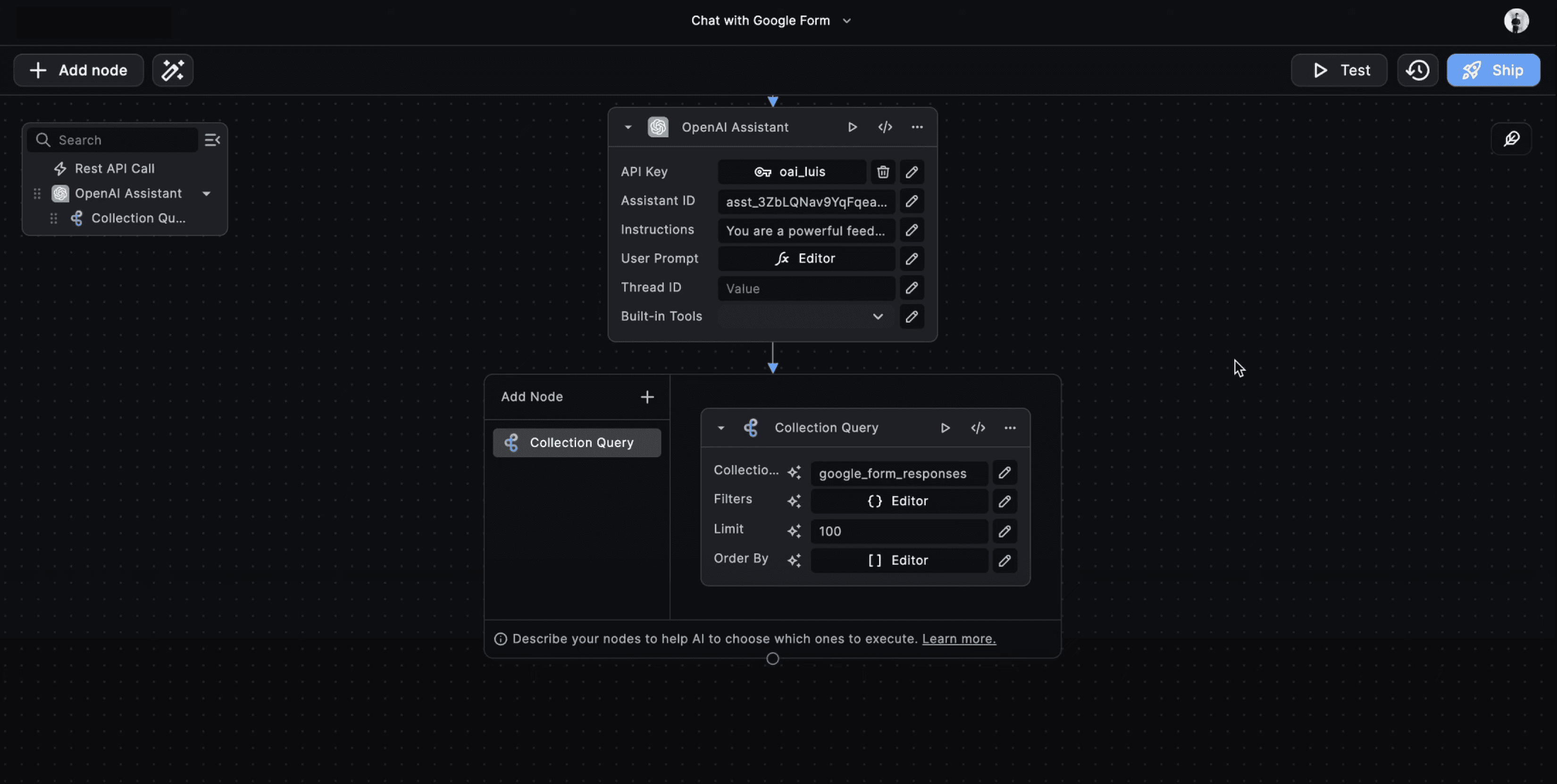
One of the powerful features of Cyrosil is the OpenAI Assistant node, which enables you to query information from your stored responses using natural language. For example, you can create a feedback assistant that allows you to ask questions like "Which section needs the most improvement based on the feedback?" The OpenAI Assistant node will analyze the stored responses and provide intelligent answers based on the data.
Step-by-Step Guide
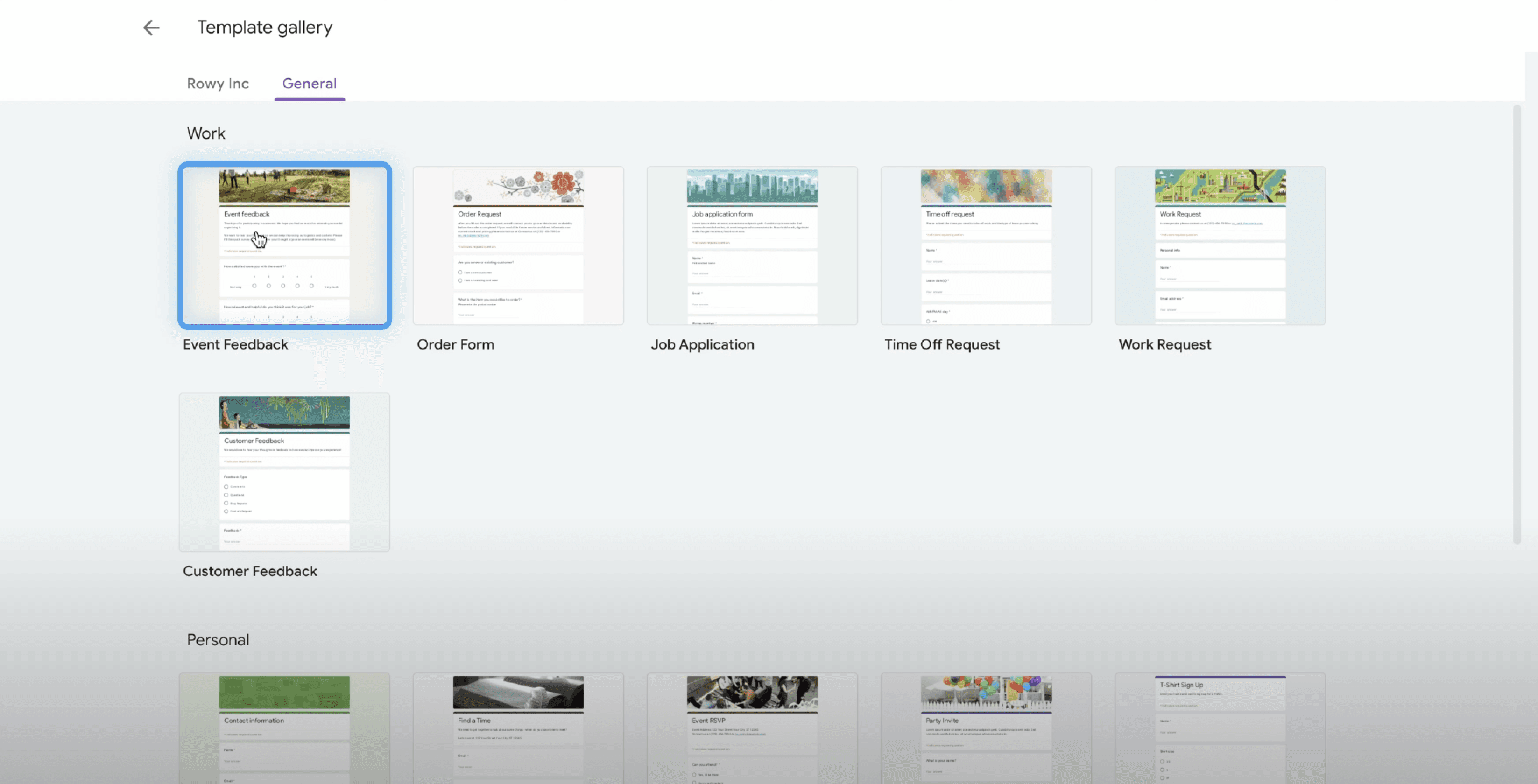
Step 1: Create your Google Form
Use a template or from scratch, customizing the questions and appearance as needed.
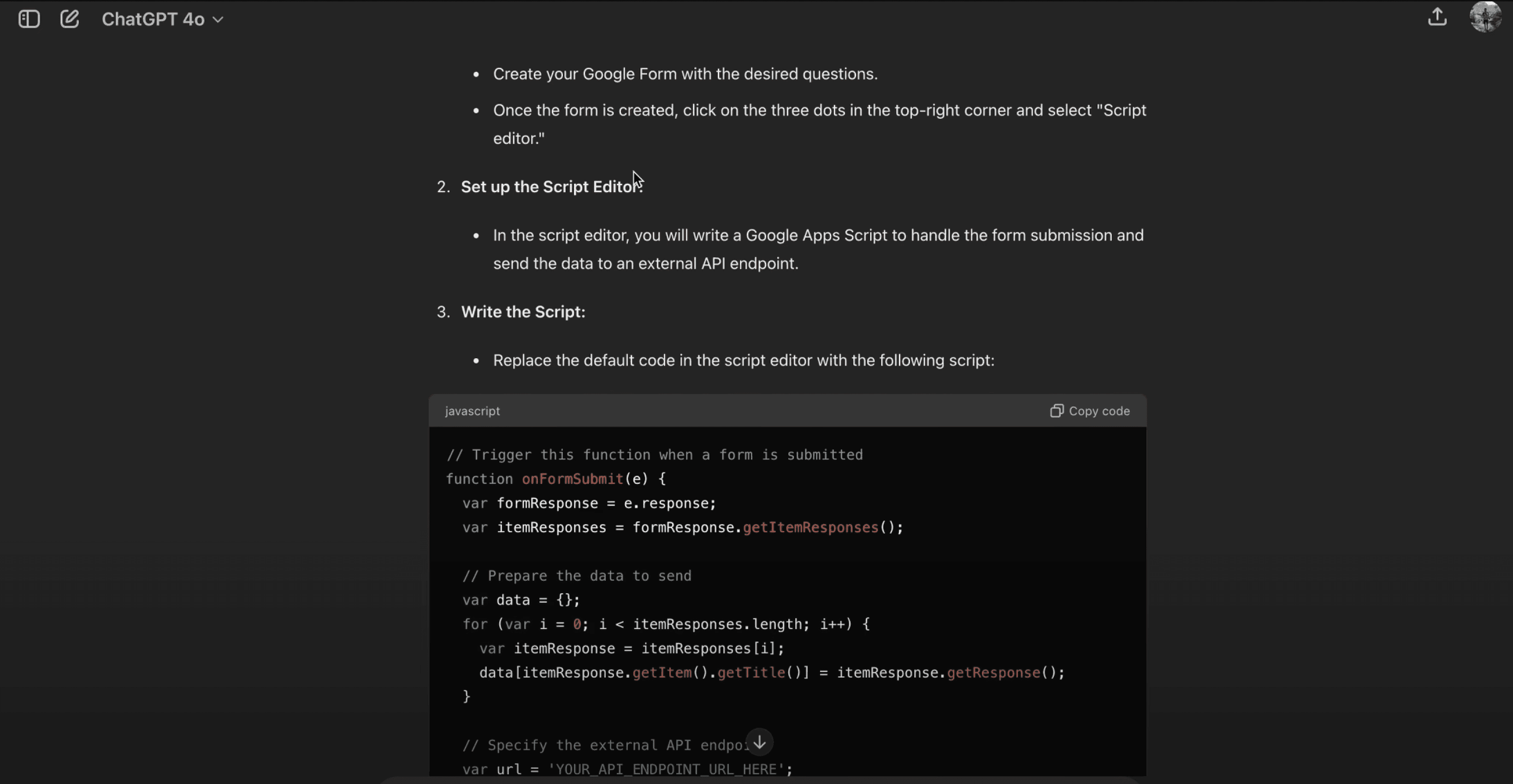
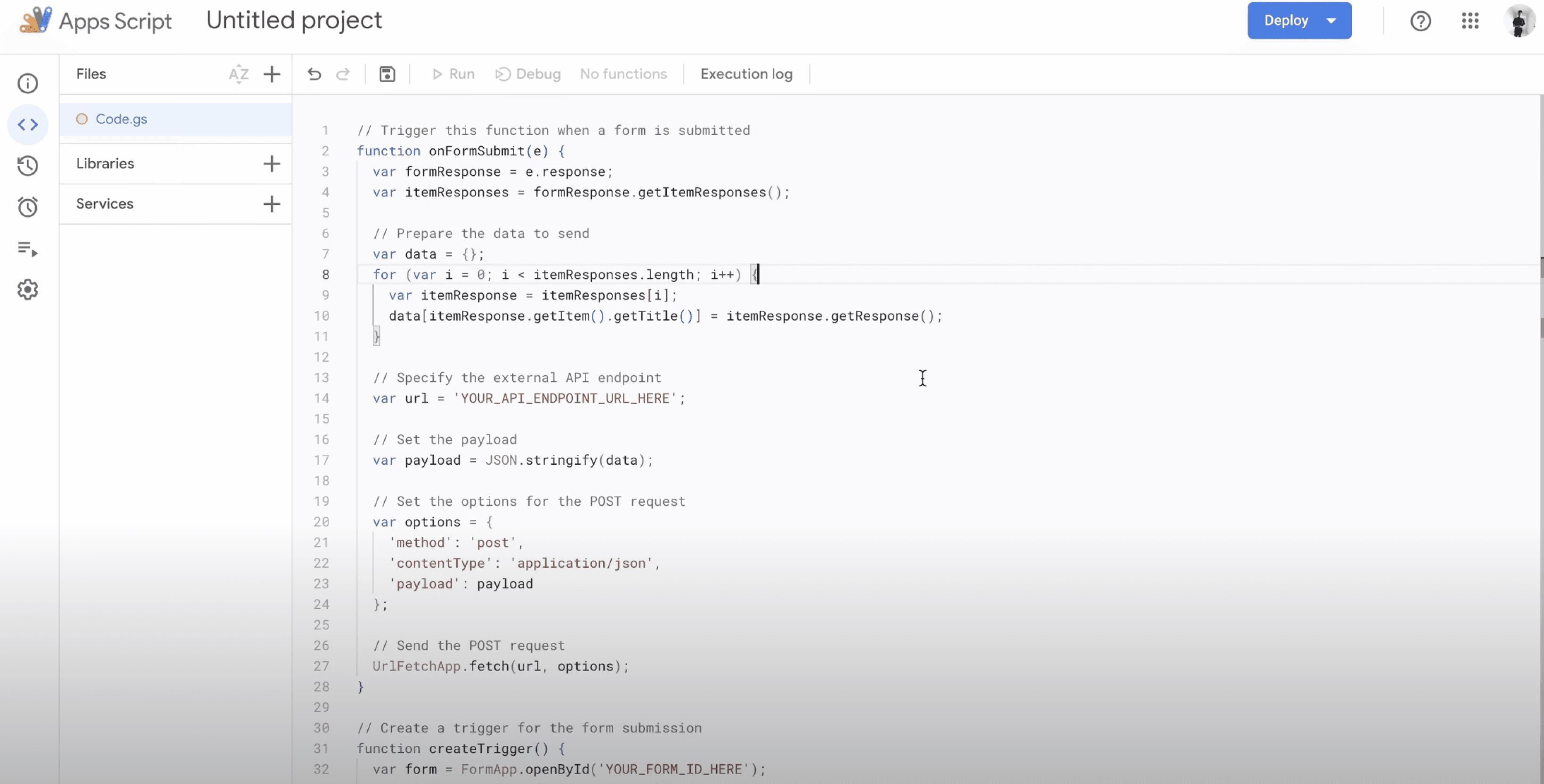
Step 2: Set up the script editor in Google Forms
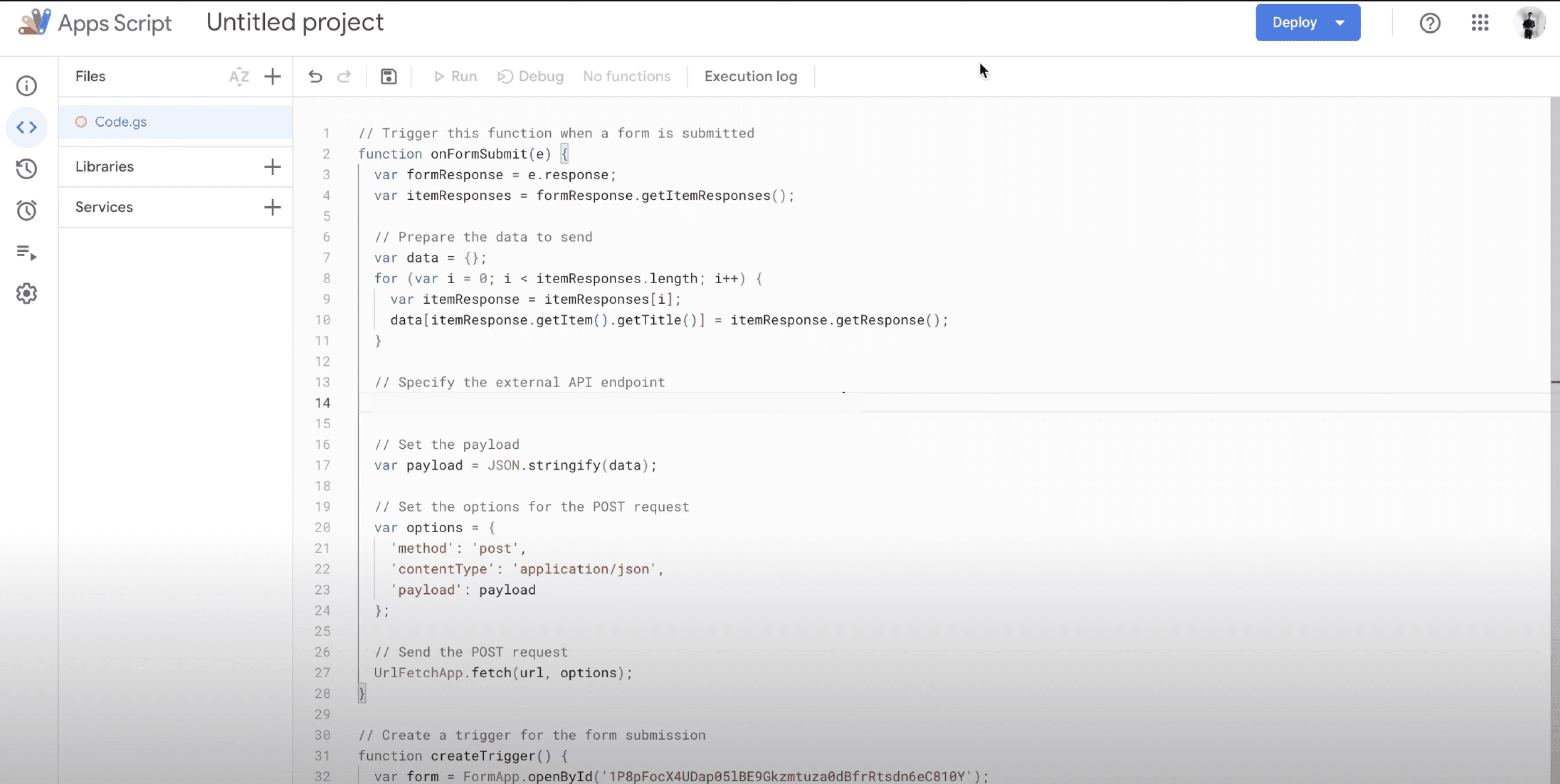
Write a Google Apps Script to handle form submissions and send the data to the Cyrosil API endpoint.
Step 3: Create a Cyrosil workflow
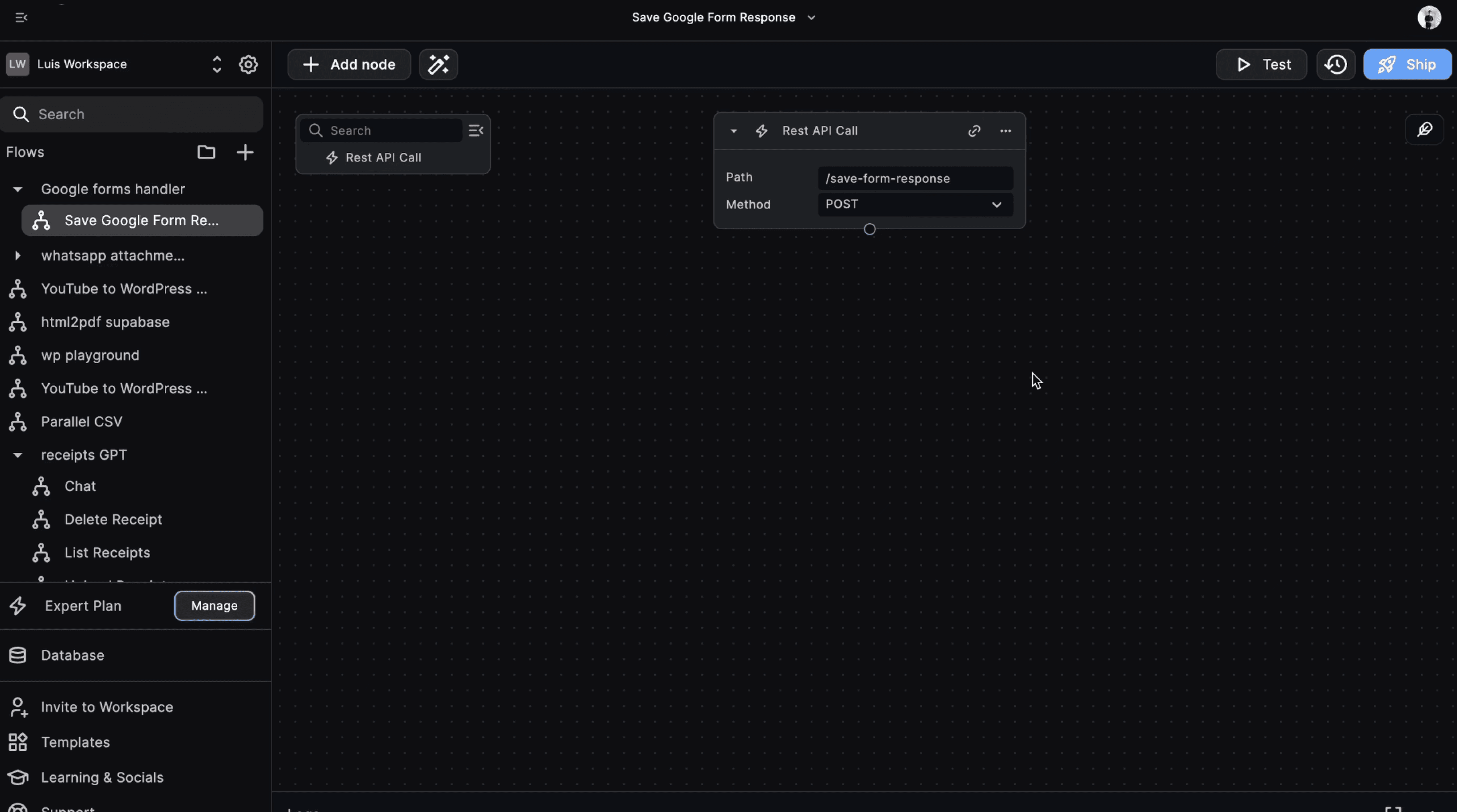
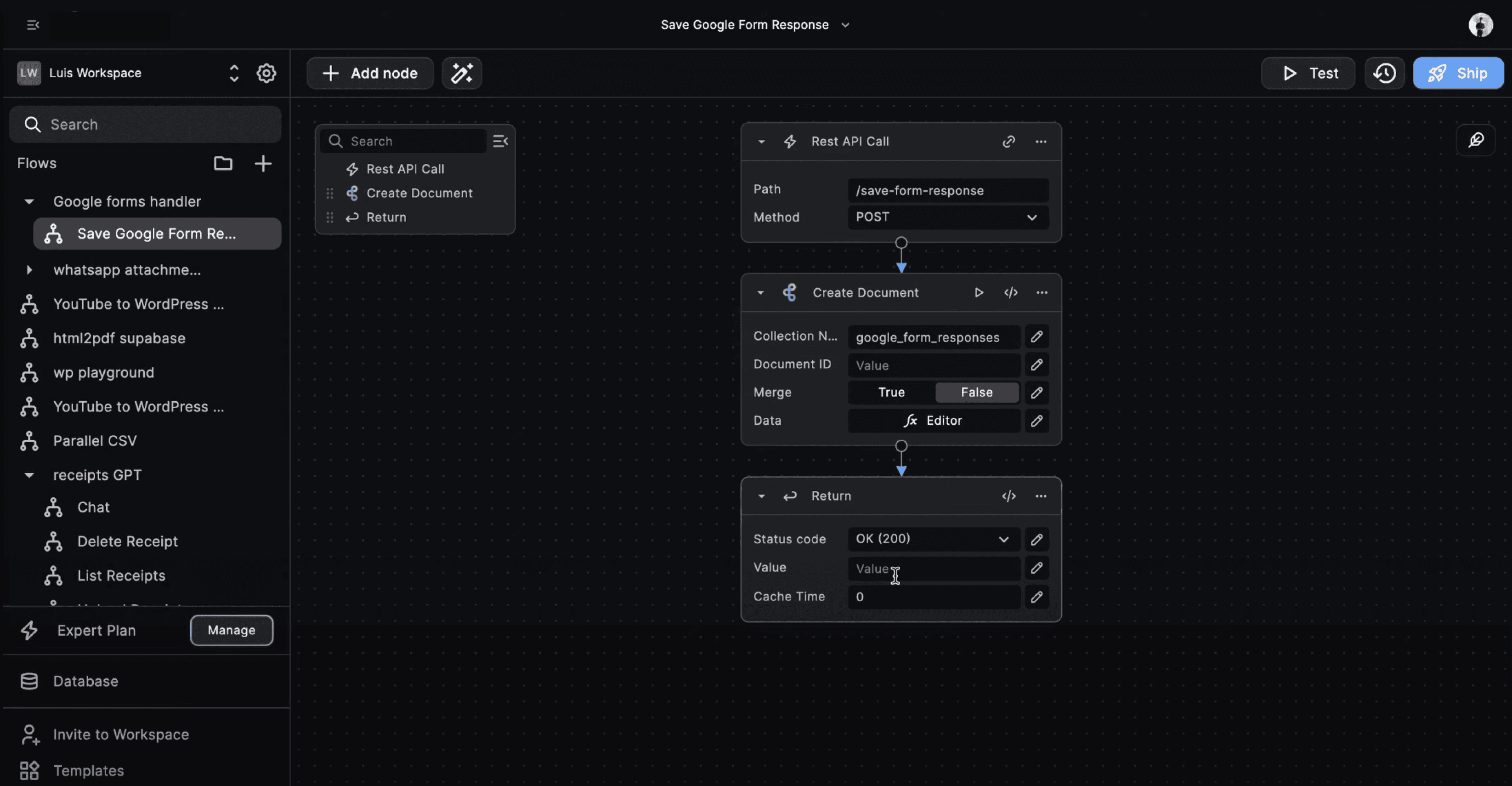
Create a workflow to receive the form responses, save them in the Cyrosil database, and return an "OK" status.
Next, deploy the Cyrosil workflow and obtain the API endpoint URL.
Update the Google Apps Script with the Cyrosil API endpoint URL and deploy the script.
Step 4: Testing
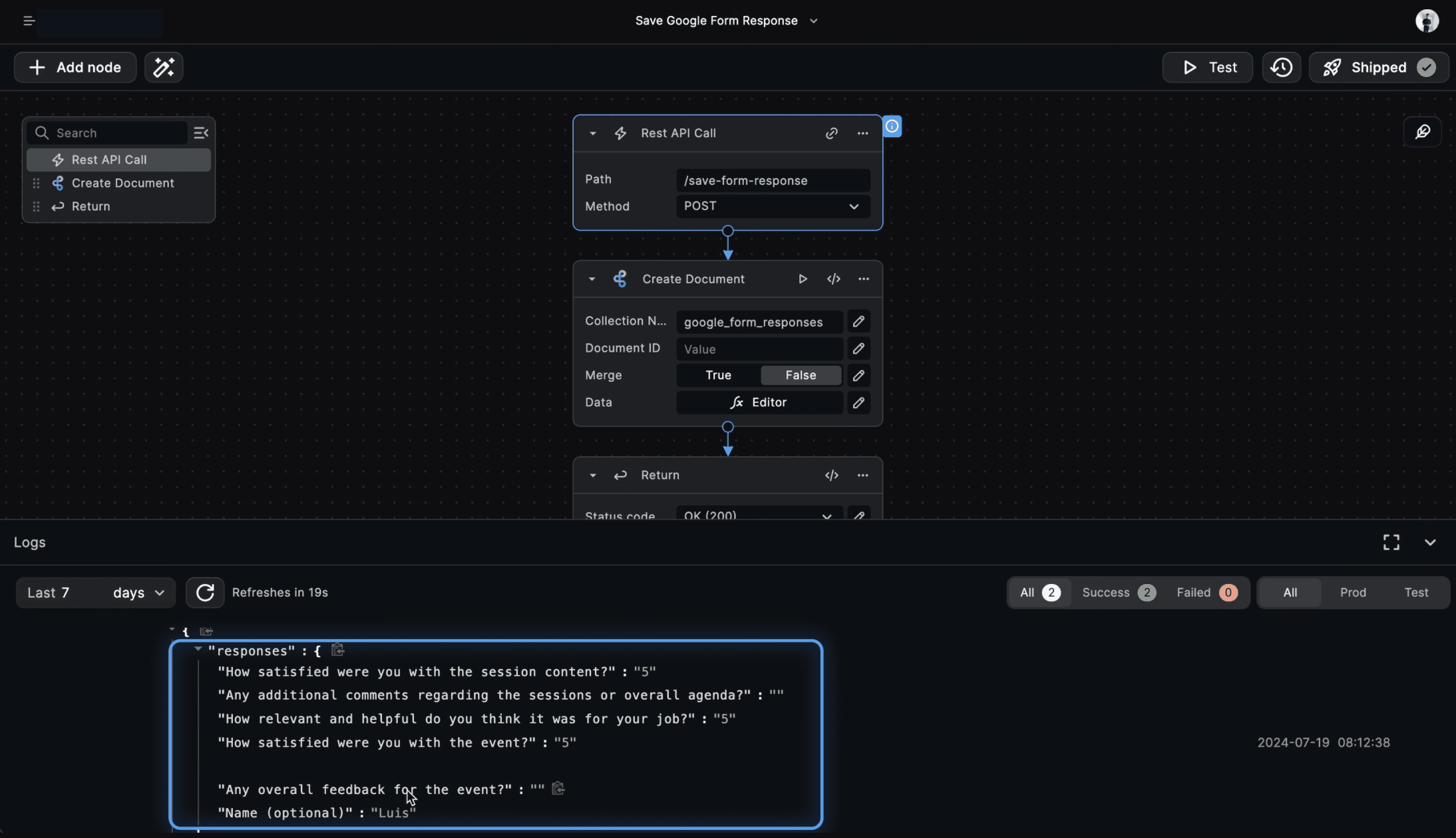
Test the integration by submitting the form and verifying that the responses are saved in the Cyrosil database.
Step 5: Querying the stored responses
Create another Cyrosil workflow for the feedback assistant, using the OpenAI Assistant node to query the stored responses.
For a complete video guide, click below:
Conclusion
By integrating Google Forms with Cyrosil, you can speed up your feedback collection process and unlock a wide range of possibilities. From storing form responses in a database to creating intelligent feedback assistants, Cyrosil enables you to automate and streamline your workflows. With the step-by-step guide provided in this blog post, you can easily set up the integration and start leveraging the power of Cyrosil for your Google Forms.